
CAPTURE, UPLOAD, REVIEW
Job photos belong with the job.
Get the crew’s photos into the inspection and in front of the office. Automatic uploads, optional regular-camera auto-add and desktop markup keep the evidence moving with the job.
14-day trial · Card required · 2-seat minimum
- Automatic uploads from in-app capture
- Optional, location-aware regular-camera imports
- Photo walls and markup for office review
CAPTURE AND KEEP MOVING
Take the photo. Let the queue handle the upload.
Photos taken in HailSeek enter the upload queue automatically and upload when a connection is available. Photos captured offline stay associated with their inspection as the work syncs.
See waiting uploads, completed work and items needing attention in the sync view. The crew can check progress before handing the inspection to the office.
YOUR REGULAR CAMERA, TOO
Bring job-site photos into the right job.
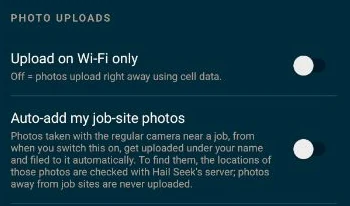
Enable auto-add and grant photo-library access to match location-tagged photos near your active team’s jobs. Matching photos can be filed to the job, bringing regular-camera captures into your inspection workflow.
Auto-add starts when you enable it; use Add photos from earlier for a separate look-back. Photos without location data or away from jobs stay on the phone, and ambiguous matches can need review.
SEE THE DETAIL
Give the office room to work.
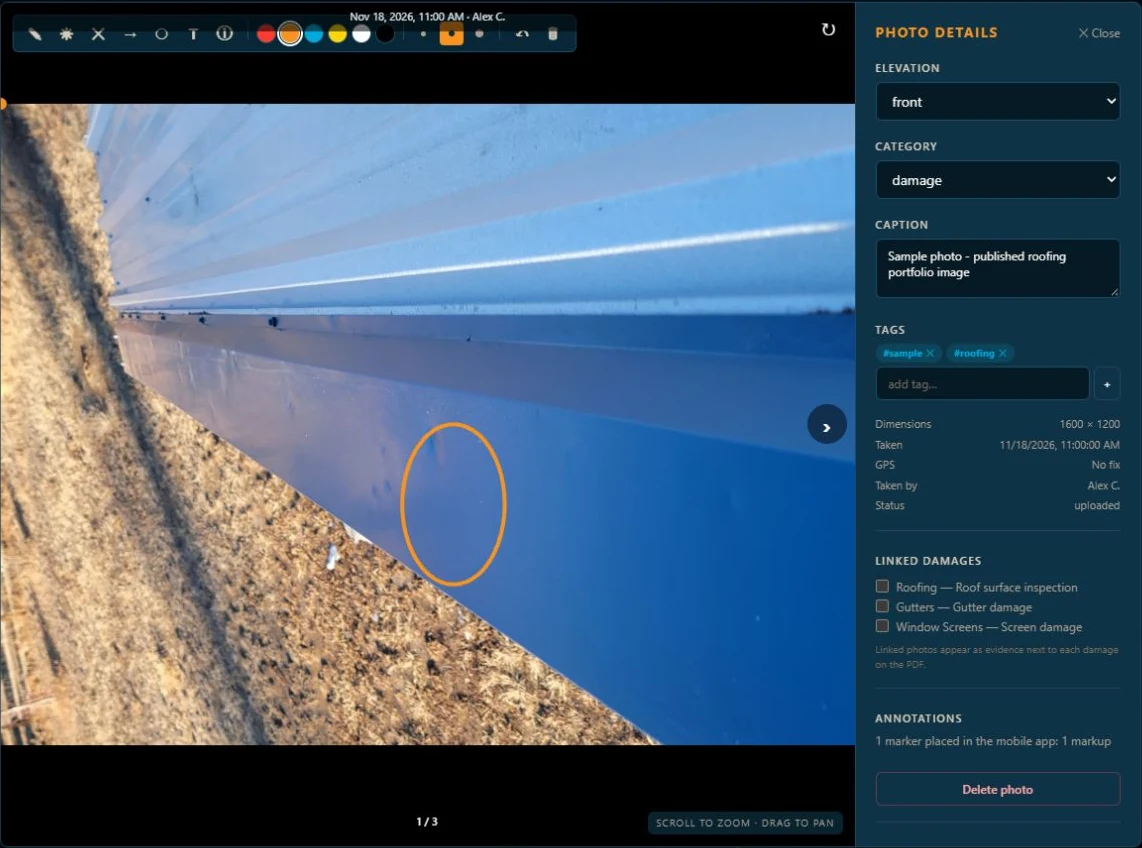
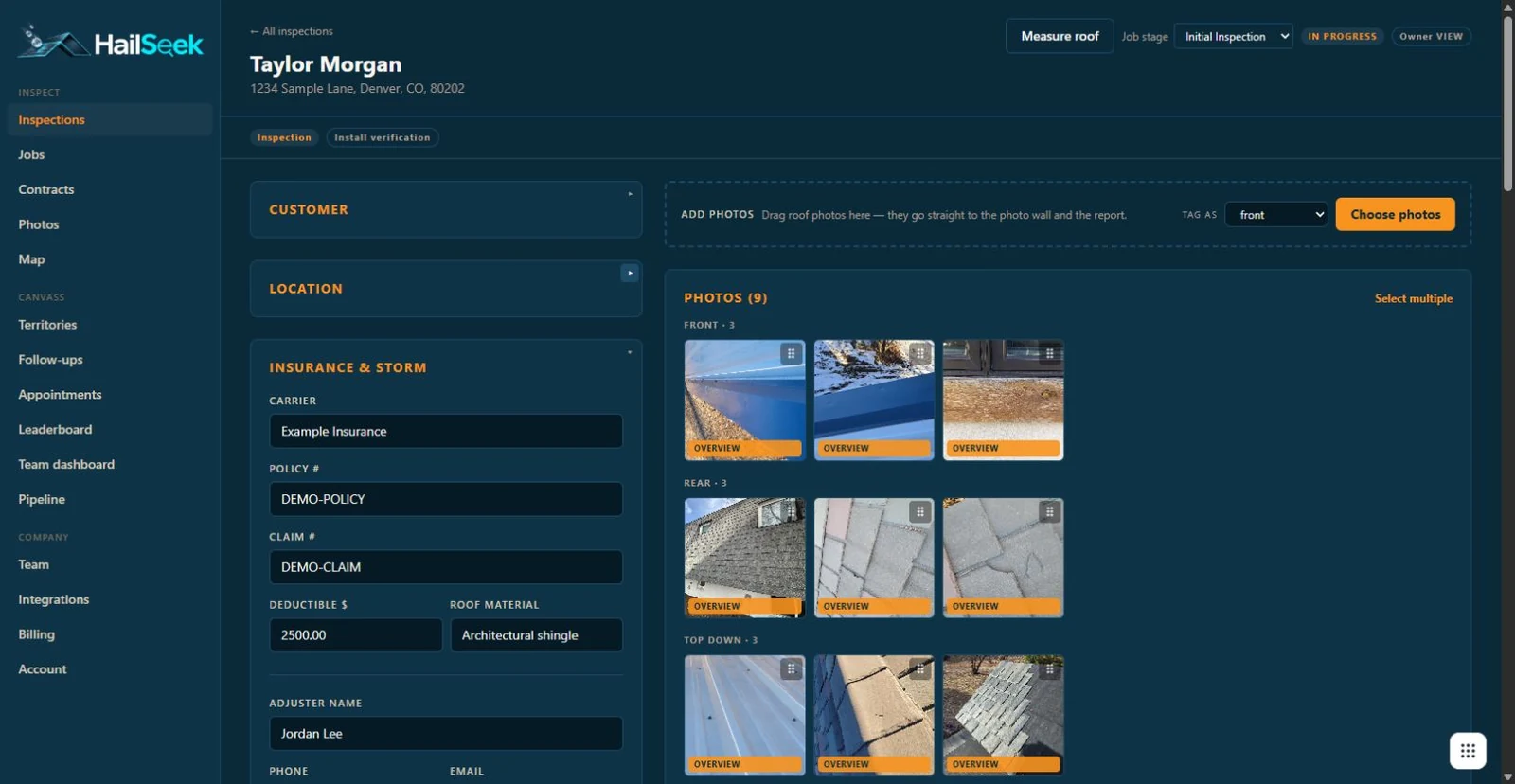
Open the photo wall by inspection and elevation, enlarge an image and mark up the evidence. Adjust damage details while the photos and property information stay within reach.
Build the report from the same organized job file your crew captured in the field.
Find the right evidence
Inspection and elevation context help reviewers navigate the photo wall.
Choose your upload settings
Set Wi-Fi-only uploads when needed and follow progress in the sync view.
Make the damage clear
Use photo markup and linked damage details to prepare the report.
Can photos from my regular phone camera be added automatically?
Yes, with auto-add enabled and photo-library access granted. Location-tagged photos near your active team’s jobs can be checked and filed to the matching job. Matching conditions matter; ambiguous photos can need review.
Does auto-add upload my entire photo library?
No. Auto-add is opt-in and checks the consented time window and the photo’s location near team jobs. Photos without location data or away from jobs stay on the phone. Turn auto-add off in the photo-upload settings when you do not want it running.
Can I add job-site photos taken before auto-add was enabled?
Use the separate Add photos from earlier action to request a look-back window. Enabling auto-add on its own starts from that point forward. Earlier photos still need usable location data and a matching nearby job.
Can uploads wait for Wi-Fi?
The phone’s photo-upload settings include Upload on Wi-Fi only. Queued items wait when their upload conditions are not met. Check the sync view when a photo has not yet reached the office.
BUILT FOR ROOFING COMPANIES
Bring the next job into HailSeek.
Start a 14-day company trial. Card required. Teams has a 2-seat minimum.